Configuration - Character
Setting up your Character for MxM/Strider and MMLP behavior
- First, create an empty game object in the scene to hold your player character. This top-level object will hold the character controller and our player controller script, as well as serving as the parent for the actual character model(s) and behaviors of the character.
-
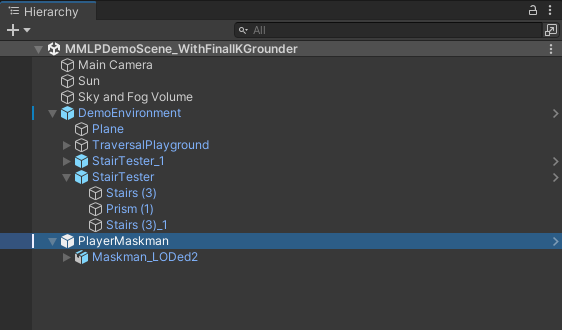
Add your Character Model in as a child of that object. In the image below from the demo scene, we've named the top-level object PlayerMaskman and have dragged in Maskman_LODed2 from Movement Animset Pro.
-
Add the following components to the Top-level object PlayerMaskman in our example:
- CharacterController and NGCharacterControllerWrapper
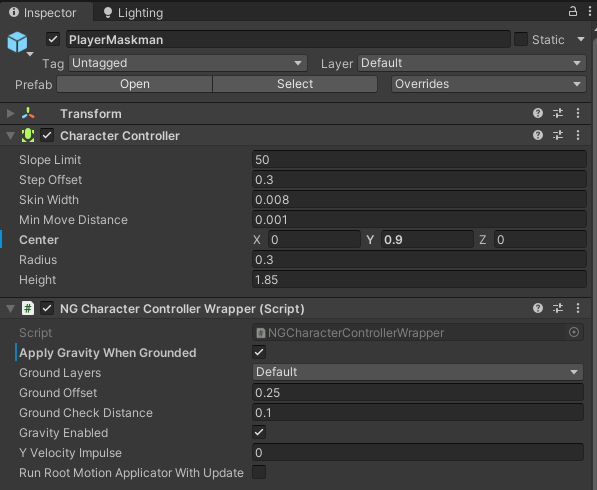
- The settings in the above screenshot are optimal for Maskman_LODed2, but configure CharacterController::[Center, Radius, and Height] to match your character model.
- Set the Ground Layers that represent all the layers the system should consider as ground in the NGCharacterControllerWrapper component.
-
To the object with the Animator component on it (in our example, that's Maskman_LODed2), do the following:
-
Add MxMAnimator component and configure like this screenshot:
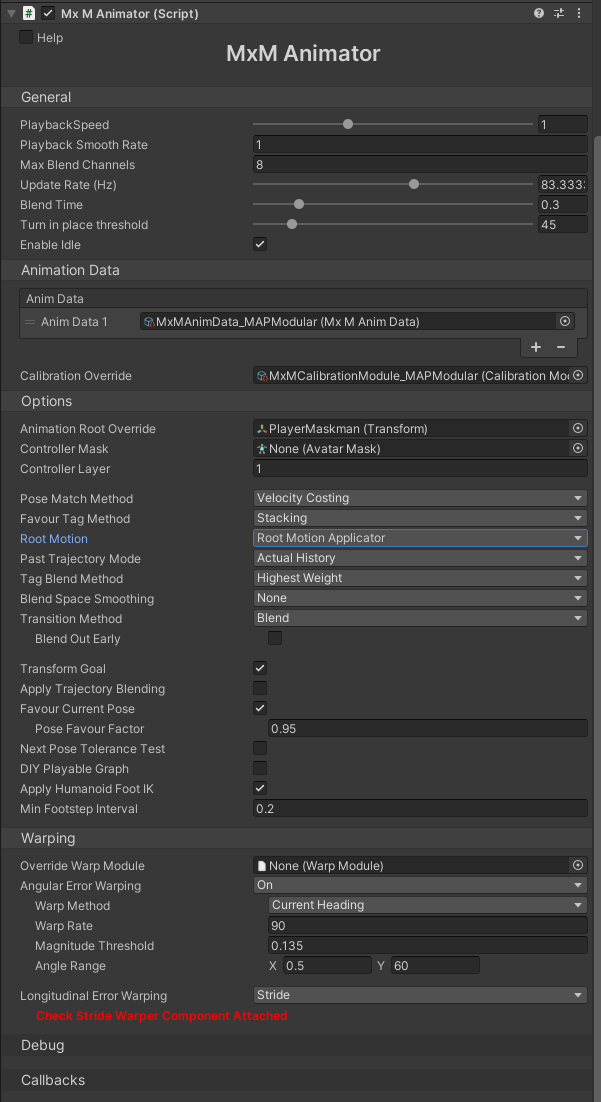
- Animation Root Override must be set to the Top-level Object Transform (e.g. PlayerMaskman)
-
Add Strider Biped MxM component and configure like this screenshot:

-
Add NG Dispatch Animation Events component (handles firing footstep event handlers)
-
Add MxM Root Motion Applicator component and configure like this screenshot:

- Controller Wrapper must be set to the Top-level Object's NG Character Controller Wrapper component.
-
Add Locomotion Speed Ramp component and configure like this screenshot:
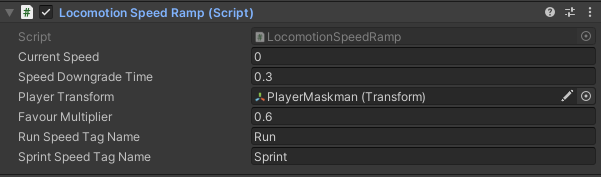
- Player Transform must be set to the Top-level Object Transform (e.g. PlayerMaskman)
-
Add MxM Trajectory Generator component and configure like this screenshot:
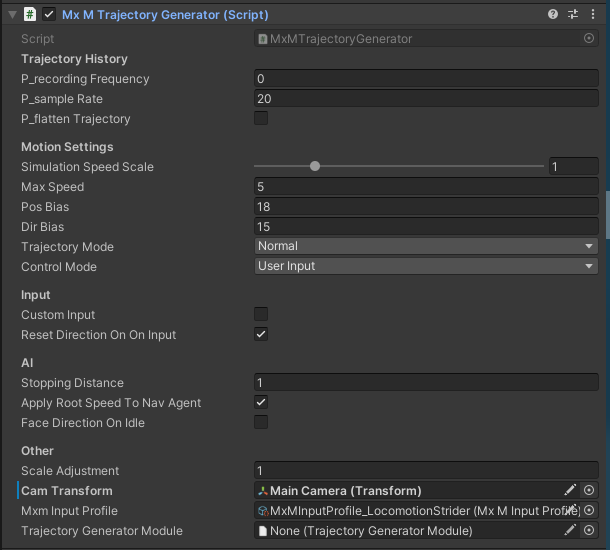
- Cam Transform must be set to your Main Camera's transform in order to have directional inputs work properly (unless you want Tank controls)
-
-
Back on the Top-level object (e.g. PlayerMaskman):
-
add NG Player Controller component and configure it like this screenshot:
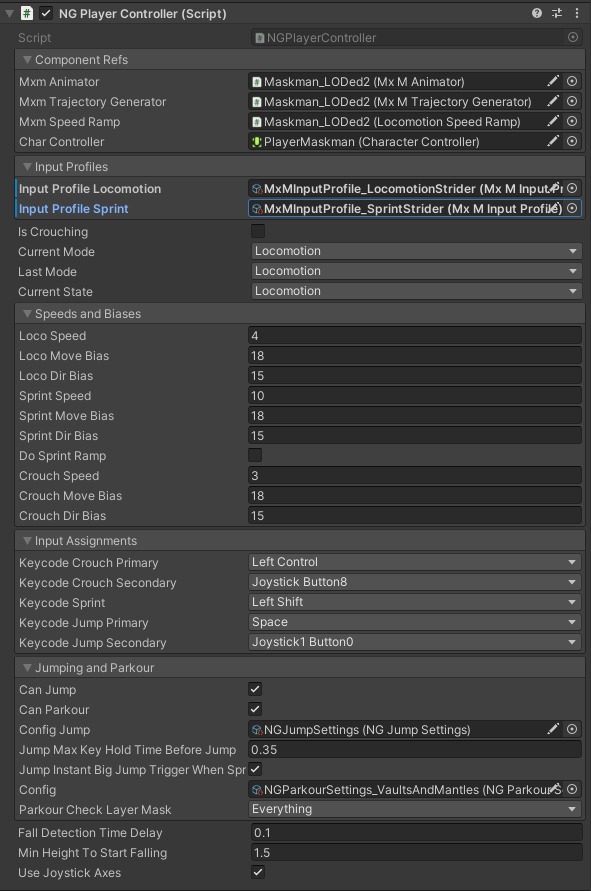
- Assign all Component Refs to the appropriate object
- Use MxMInputProfile_LocomotionStrider and ..._SprintStrider for Input Profiles
- Set Config Jump to NGJumpSettings
- Set Config to NGParkourSettings_VaultsAndMantles (parkour config)
- If you've set up an Input Axis in the Input Manager for joystickLeftTrigger (to control sprint), you can check Use Joystick Axes, otherwise, uncheck it.
-
Footstep reaction (sounds and effects)
The high likelihood of using multiple Animators or systems to animate each character (and suggestions from MxM author) led this solution to utilize pure Unity Animation Events for footstep invocation. To use this, Put the NGDispatchAnimationEvents component on the object containing your character's Animator (same object as MxMAnimator). Add method handlers for right, left, and/or any footstep event based on your needs.
Configuration
While NGPlayerController and NGCharacterControllerWrapper have some basic and scene-specific configuration elements to control MMLocoParkour's behavior, the predominance of customization/configuration for this asset is provided by ScriptableObject configuration. This configuration is provided through NGParkourSettings and NGJumpSettings.
There are pre-configured settings Scriptable Objects in Assets/Plugins/Threepeat/MMLocoParkour/Configs/ that can be duplicated to make customized versions for your application. The process of creating them from scratch is covered in more detail in the next two sections.
Controlling Parkour Abilities (NGParkourSettings)
-
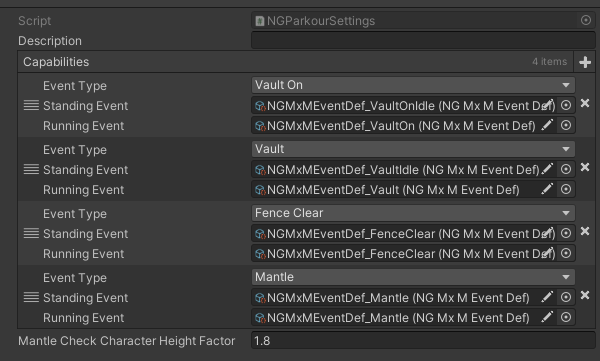
To create an NGParkourSettings object, right click in the Project view and select Create -> Threepeat -> NGParkourSettings. An example of a preconfigured settings object is below:
-
Capabilities List: This list defines the capabilities the character will have. Each capability in the list has the following parameters:
- Event Type: The type of athletic action (e.g. vault, vault on, fence clear, mantle). Note: the list provided has several more options for event type that are not implemented in this version of MMLocoParkour.
- Standing Event: The MxM event to be executed when engaging this action when character is standing or moving slowly.
- Running Event: The MxM event to be executed when engaging this action when character is running.
-
Mantle Check Character Height Factor: this defines the highest ledge, as a multiple of the character's height, that the character can "reach" to mantle (aka climb onto).
Setting up Jump Behavior (NGJumpSettings)
-
To create an NGParkourSettings object, right click in the Project view and select Create -> Threepeat -> NGParkourSettings. An example of a preconfigured settings object is below:

-
Jump Force: upward force to be applied to character on a regular jump event
-
Jump Force Big: upward force to be applied to character on a big jump event
-
Jump_Event Def: MxM Event to fire for jumps
-
Landing_Event Def: MxM Event to fire whenever the player lands (impacts the ground after having not been grounded. this includes both post-jump conditions and any time the player walks, runs or falls off a ledge.)
-
Landing Heavy_Event Def: MxM Event to fire on hard landings (as defined by Landing_HeavySpeedThreshold) with low forward velocity or when ground path ahead of character is obstructed.
-
Landing Heavy Forward Clear_Event Def: MxM Event to fire on hard landings (as defined by Landing_HeavySpeedThreshold) with high forward velocity or when ground path ahead of character is clear.
-
Jump Big_Favour Tag: (leave this set to 22): Favour tag to use to achieve correct launch animation for big jumps.
-
Landing_Distance To Check For Clear Path Ahead: Distance ahead of player upon hard landing to check for obstruction to decide which event to fire (e.g. if there's room to do a landing forward roll, do that, otherwise do a more stationary or space-constrained landing animation.)
-
Landing_Heavy Speed Threshold: Ground Impact Speed to engage heavy landing logic. This is a negative number, since it represents a negative speed in the Y direction (fall speed at impact with ground).
-
Landing_Min Forward Speed For Landing Event: For normal landings, if speed is below this value, the player will just resume their idle or walking behavior upon landing instead of engaging the landing event. This makes the landing system more responsive/realistic for small jumps or falls.
-
Delay Gravity Time: Duration of time gravity re-enabling should be delayed after the landing event is complete.
Using Gamepad / Game Controller
-
Setup inputs for JoystickLeftTrigger (this will toggle sprint) in Project Settings -> Input Manager -> Axes :
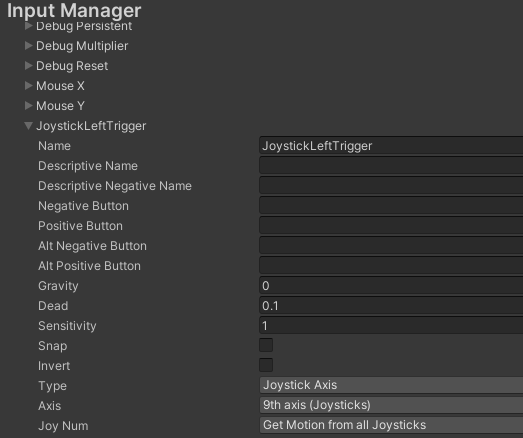
- Note: JoystickRightTrigger would be the same just with 10th Axis (Joysticks) instead of 9th.
-
In the Main Player object's NGPlayerController component, toggle on Use Joystick Axes